How to Copy YouTube Transcript on Phone
Copy a YouTube transcript on your phone with YouTube’s own transcript panel, a free browser tool, or a transcription app. This guide compares all three routes on iPhone and Android.
3 Methods at a Glance
Choose by outcome, not by app. YouTube’s panel is best for reading along, our browser tool is designed for copying a complete caption track, and a transcription service adds editing or AI features.
- Method 1
YouTube panel
- Best for:
- Reading and jumping to a moment
- Full copy:
- Not consistently available
- Setup:
- None
- Method 2
YouTube2Transcript
- Best for:
- Copying or downloading all captions
- Full copy:
- One action
- Setup:
- Phone browser only
- Method 3
Transcription service
- Best for:
- Editing, translation, or summaries
- Full copy:
- Usually available
- Setup:
- Often an account or app
The first two methods need an accessible caption track. Private, members-only, live, age-restricted, or newly uploaded videos may not expose one. Check the video’s captions menu before troubleshooting your phone.
Method 1: View YouTube’s Built-in Transcript
Use this method to read along or jump to a specific moment. YouTube’s official transcript instructions explain how to open the panel and select a line, but do not promise full-text copying in the mobile app. Text selection can therefore vary by app and operating-system version.
- 1
Open a video with captions in the YouTube app.
- 2
Expand the video description. Depending on the app version, this may be under the title, “…”, or “More.”
- 3
Find and tap “Show transcript.”
- 4
Tap a transcript line to jump to that moment. If a long press shows text-selection handles, you can copy a short passage; if it only seeks the video, use Method 2 for a full copy.
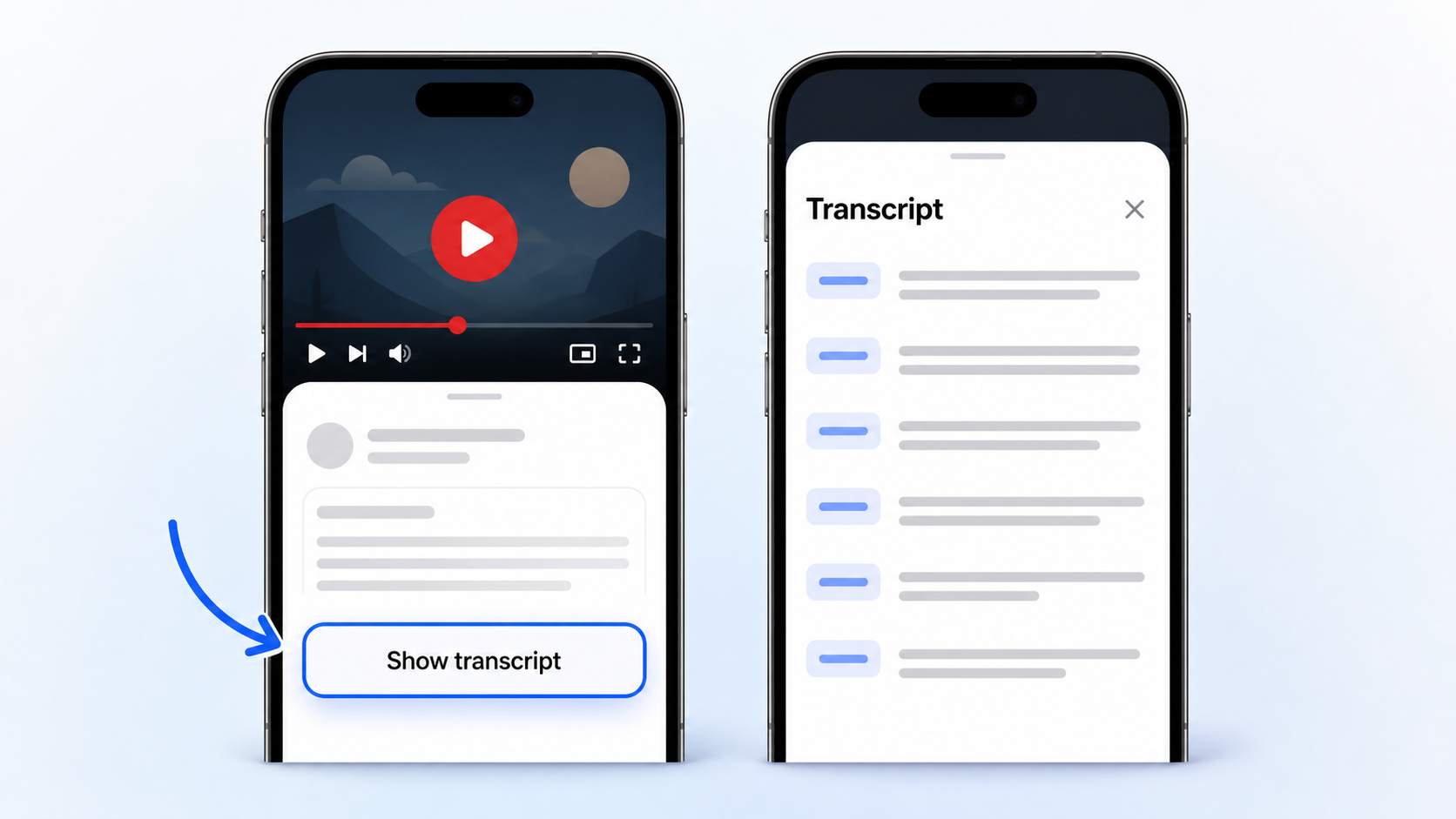
Where this method falls short
- Not every video exposes an accessible transcript.
- YouTube does not offer a one-tap transcript download.
- Some app versions treat transcript lines only as video seek controls, so full-text selection is unavailable.
Method 2: Copy the Full Transcript with YouTube2Transcript
When a public video exposes captions, our YouTube transcript tool formats them as clean, selectable text. It works in a phone browser, with no account, app install, or usage limit for normal use.
- 1
Open youtube2transcript.com in Safari, Chrome, or your preferred phone browser.
- 2
Paste the YouTube video link into the input box.
- 3
Tap “Get Transcript” and wait a few seconds.
- 4
Tap “Copy Transcript” to copy the full text in one action, or download the .txt file.
First, copy the YouTube video link
In the YouTube app, tap “Share,” then “Copy link.” Both short youtu.be links and full youtube.com addresses work. If the video is open in a browser, you can also copy its address from the URL bar.
You do not need to download the video, record your screen, or grant microphone access. The tool reads the caption track associated with the link rather than processing your phone’s audio.
Tap or click either image to open the mobile screenshot at full size.
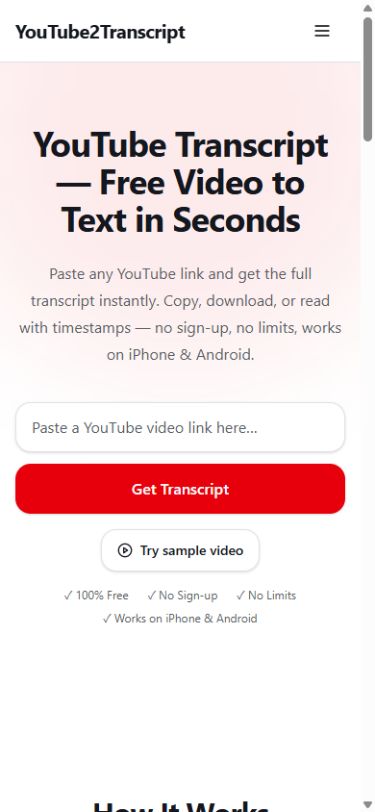
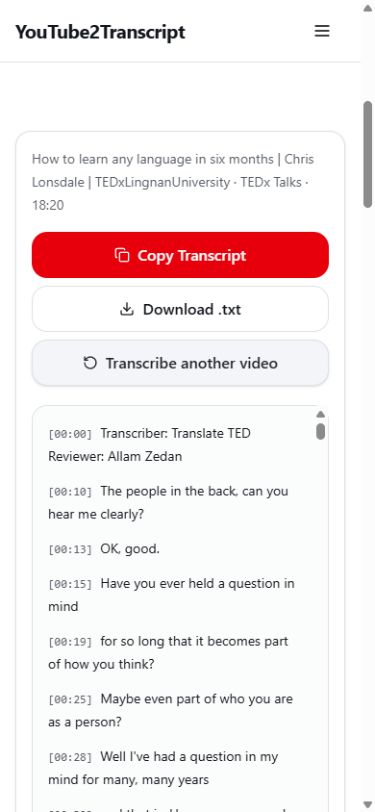
This method avoids line-by-line selection and keeps timestamps with the text. It cannot retrieve captions that a video does not make accessible; use an audio transcription service in Method 3 when no caption track exists.
Method 3: Use a Third-Party Transcription Service
Choose this route when the video has no accessible captions, or when you need editing, translation, summaries, or extra export formats. These services may generate a new transcript from audio, so they usually require more time and may require an account or paid plan.
Transkriptor
Its official YouTube-to-text page supports pasting a YouTube URL. Check the current plan if you need a particular language, export, or summary feature.
Notta
Notta’s official help page says YouTube URL import runs in Notta Web for public videos and Shorts. Those URL imports do not support speaker identification or bilingual transcription.
Before uploading a recording to any transcription service, check its pricing, storage, and deletion settings. Do not upload private, licensed, or confidential material unless you have permission to process it.
Quick Tips for Getting Accurate Transcripts
Prefer human-edited captions, then verify key quotes.
Creator-uploaded captions usually handle names and technical terms better. Automatic captions can still be useful for notes, but check any quotation against the audio before publishing it.
Check for another caption language.
When several tracks are available, select the original spoken language first. Translate the copied text only after checking the source transcript.
Know what a missing button means.
If “Show transcript” is missing, captions may be unavailable, still processing, or hidden by that interface version. Method 2 can help when an accessible caption track exists; otherwise, use a service that transcribes the audio itself.
A transcript is a research aid, not permission to republish a creator’s work. Quote only what you need, credit the source, and respect copyright and the video’s terms of use.
Sources and Verification
Product instructions and service limitations were checked on September 2, 2026. Interfaces, plans, and supported features can change, so confirm a provider’s current documentation before relying on a paid workflow.
- YouTube Help: View video transcripts — opening the panel and jumping to a transcript line.
- Notta Help: Upload and transcribe YouTube videos — web-only URL import scope and feature exclusions.
- Transkriptor: YouTube video to text — direct YouTube URL workflow.
Frequently Asked Questions
Can you copy YouTube transcript on phone?
Sometimes. YouTube lets you open a transcript and tap a line to jump through the video, but text selection varies by app and operating-system version. For a reliable full copy, paste a public video link with accessible captions into YouTube2Transcript.
How do I get the transcript of a YouTube video on my phone?
Copy the YouTube video link, open YouTube2Transcript in your phone browser, paste the link, and tap Get Transcript. You can then copy the complete transcript or download it as a text file.
Is there a free way to copy YouTube transcript on phone?
Yes. YouTube’s Show transcript feature and YouTube2Transcript are free to use. Our tool requires no app or account and has no usage limit for normal use. Both methods depend on the video having accessible captions.